
Focus keyword: run local AI 2026
Keywords: run local AI Ollama setup guide Gemma 4 Ollama offline AI 2026 local LLM guide private AI
What You’ll Learn
- How to install Ollama and run Gemma 4 locally in under 5 minutes
- Hardware requirements — which model fits your machine (laptop to workstation)
- Pros and cons of local AI vs cloud-based models
- Best local AI tools: Ollama, LM Studio, Jan, and Faraday.dev
Running AI Offline: The Complete Guide to Local AI in 2026
Last updated: May 2026
Privacy-conscious professionals and developers are moving AI off the cloud and onto their own machines. Running a Large Language Model (LLM) like Gemma 4 or Llama 4 locally means your data never leaves your computer — no API keys, no subscription fees, no training on your private documents. This guide walks you through everything you need to set up and run local AI in 2026.
What Is Local AI and Why Does It Matter?
Local AI refers to running machine learning models directly on your own hardware rather than sending data to cloud APIs like ChatGPT or Claude. By 2026, open-weight models have reached the point where local AI handles 80% of tasks that previously required cloud APIs — including coding assistance, document analysis, content writing, and data extraction.
The shift to local AI is driven by three factors: data privacy (your data never leaves your machine), zero ongoing cost (no per-token billing), and offline availability (works without internet after initial download).
Getting Started: Install Ollama in 60 Seconds
Ollama is the most popular tool for running local AI in 2026. It handles model downloading, quantization, GPU acceleration, and inference — all from a single command.
# Install Ollama (macOS / Linux)
curl -fsSL https://ollama.com/install.sh | sh
# Run Gemma 4 locally
ollama run gemma4
# Or try Llama 4
ollama run llama4
That’s it. After running these two commands, you have a fully functional local AI assistant. Ollama automatically detects your GPU, applies optimal quantization, and exposes an OpenAI-compatible API at localhost:11434 that works with any existing AI tool.
Which LLM Should You Run Locally?
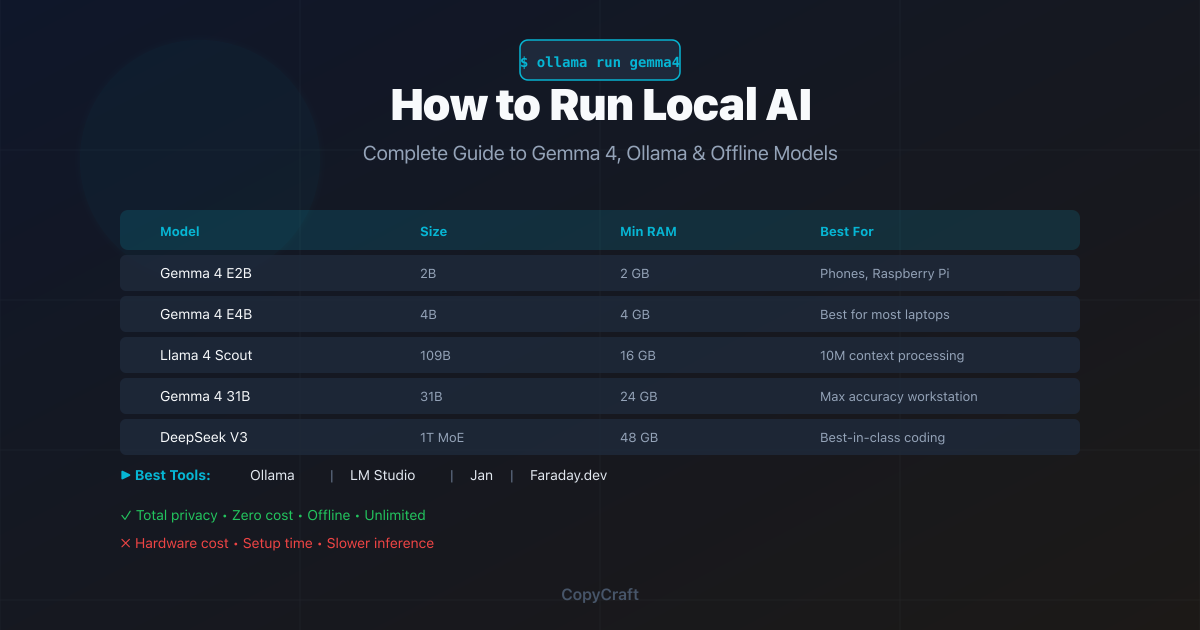
The best model depends on your hardware. Here’s a quick decision guide based on system RAM and use case:
| Model | Size | Min RAM | Best For |
|---|---|---|---|
| Gemma 4 E2B | 2B | 2 GB | Phones, Raspberry Pi, lightweight QA |
| Gemma 4 E4B | 4B | 4 GB | Best for most laptops, writing, analysis |
| Llama 4 Scout | 109B | 16 GB | 10M context, massive document processing |
| Gemma 4 31B | 31B | 24 GB | Maximum accuracy, workstation use |
| DeepSeek V3 | 1T (MoE) | 48 GB | Best-in-class coding, multi-GPU setups |
Best Tools for Running Local AI
Beyond Ollama, several excellent tools make local AI accessible:
- Ollama: The most popular choice. CLI-based, one-command setup, OpenAI-compatible API. Supports macOS, Linux, and Windows.
- LM Studio: A polished GUI for browsing, downloading, and running models from Hugging Face. Best for users who prefer visual interfaces.
- Jan: An open-source desktop ChatGPT alternative that runs entirely offline. Features a clean, familiar chat interface.
- Faraday.dev: Optimized for creative writing and roleplay. Zero configuration — just download and chat.
Why Go Local?
- ✅ Total Privacy: Your data never leaves your machine — no training, no leaks
- ✅ Zero Cost: No monthly subscriptions, no per-token API fees
- ✅ Offline Access: Full functionality without internet connection
- ✅ Unlimited Usage: No rate limits, no message caps, no throttling
Considerations
- ❌ Hardware Cost: High-end GPUs with 16GB+ VRAM are expensive
- ❌ Setup Time: Requires more technical knowledge than cloud AI
- ❌ Slower Inference: Speed limited by your local hardware
- ❌ Smaller Context: Consumer hardware limits maximum model size
Final Verdict: Is Local AI Worth It in 2026?
For most users, the answer is yes — with a caveat. Local AI excels at privacy-sensitive tasks like handling legal documents, proprietary code, and personal data. It also saves money in the long run if you use AI heavily. However, cloud models like Claude 4 and GPT-5 still hold the edge in raw reasoning power and convenience.
The optimal strategy for 2026 is a hybrid approach: use local AI for daily, private, and high-volume tasks, and cloud models for complex reasoning, research, and specialized workflows. After generating content with either approach, verify quality with a Word Counter and ensure originality with an AI Detector.
Local AI FAQs
What is the minimum hardware needed to run local AI?
For small models like Gemma 4 E2B (2B parameters), you need just 2GB of RAM — even a Raspberry Pi can run it. For good quality writing and analysis, Gemma 4 E4B (4B) requires 4GB RAM and runs on any modern laptop. For flagship models, you’ll want 16GB+ VRAM.
Is Ollama free to use?
Yes, Ollama is completely free and open source. There are no subscriptions, hidden fees, or usage limits. You only pay for your hardware and electricity.
Can I use local AI for professional writing?
Absolutely. Local models like Gemma 4 and Llama 4 produce high-quality text. Many writers use local AI for first drafts, then refine with tools like the AI Humanizer and check readability with a Readability Checker.
Do I need an internet connection to use local AI?
Only for the initial download of the model. After that, local AI works completely offline — no internet required for inference. This makes it ideal for secure environments, travel, and areas with unreliable connectivity.
Continue Reading
Leave a Reply